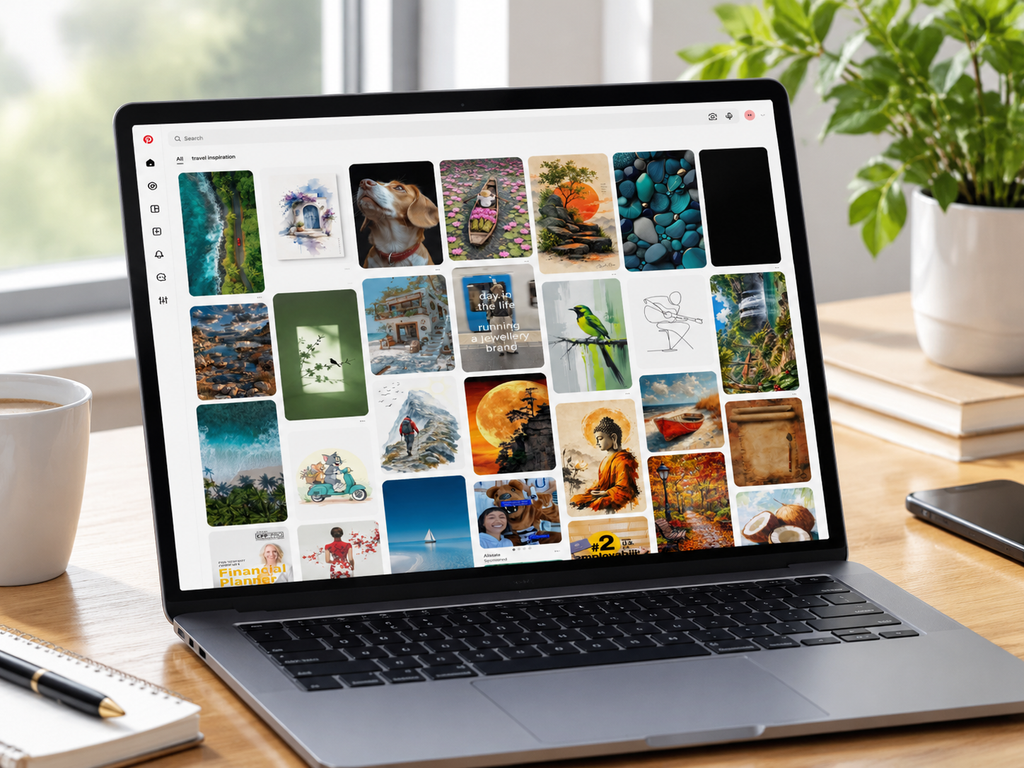
Pinterest is a visual discovery platform where people search for ideas, save inspiration, discover products, and visit websites. Whether you are a blogger, content creator, designer, or business owner, the quality and dimensions of your Pins can influence how effectively your content attracts attention. If your Pinterest images look cropped, stretched, blurry, or incomplete, the problem may be related to the image dimensions, aspect ratio, or the way the Pin was uploaded.
Choosing the correct Pinterest Pin size is an essential part of creating professional-looking content. Pinterest supports different image and video formats, but tall vertical Pins are particularly useful for displaying content in the platform’s scrolling feed. Pinterest recommends a 2:3 aspect ratio, or 1000 × 1500 pixels, for standard image Pins, and a 9:16 aspect ratio, or 1080 × 1920 pixels, for full-screen video Pins. Taller images that exceed the recommended proportions may be truncated in certain placements.
Understanding why Pinterest crops images can help you avoid common design mistakes and create Pins that look consistent across devices. This guide explains the recommended Pinterest image dimensions, common reasons Pins appear cropped, practical solutions for fixing existing images, and ways to prepare better Pins for publishing and scheduling.
Pinterest Pin Sizes at a Glance
Before designing a new Pin, identify the format you intend to publish. Different content types require different dimensions, and a size that works well for a standard image Pin may not be suitable for a full-screen video or profile cover.
| Pinterest Content Type | Recommended Working Dimensions | Aspect Ratio |
|---|---|---|
| Standard image Pin | 1000 × 1500 px | 2:3 |
| Vertical video Pin | 1080 × 1920 px | 9:16 |
| Square Pin | 1000 × 1000 px | 1:1 |
| Landscape Pin | 1200 × 675 px | 16:9 |
| Pinterest carousel image | 1000 × 1500 px or 1000 × 1000 px | 2:3 or 1:1 |
| Pinterest profile cover | 800 × 450 px | 16:9 |
| Pinterest board cover | Square or landscape design, depending on display | Varies |
These are practical design dimensions, not a guarantee that every Pin format or publishing tool accepts every size. Pinterest’s current creation tools support several aspect ratios, while its standard image guidance recommends 2:3 for images and 9:16 for vertical videos. Some specifications also differ between organic content, advertising formats, and third-party scheduling integrations.
Why Your Pinterest Pins Look Cropped
Pinterest cropping can happen for several reasons, including incorrect aspect ratios, oversized images, inconsistent canvas dimensions, or the way a publishing tool processes an uploaded file. Sometimes the image itself is fine, but the platform displays only a portion of it in the feed or preview.
Before redesigning your entire Pin, identify where the cropping occurs. Check whether the problem appears in the original image, the publishing preview, the Pinterest feed, the Pin detail page, or the destination website. Each situation may require a different fix.
Your Image Has the Wrong Aspect Ratio
An aspect ratio describes the relationship between an image’s width and height. A 2:3 Pin is two units wide for every three units high, making it taller than it is wide. If you upload a landscape image or a very tall graphic without adapting its composition, Pinterest or your editing tool may crop the image to fit the selected format.
For example, a 1920 × 1080 landscape image has a 16:9 aspect ratio, while a standard Pinterest image Pin uses 2:3. Simply forcing the landscape image into a portrait canvas can cut off people, products, text, or other important details. Instead, create a new portrait composition or use a background that allows the original image to fit without losing essential information.
Your Pin Is Too Tall
One of the most common reasons Pinterest Pins appear truncated is excessive image height relative to width. A standard image Pin should generally use a 2:3 aspect ratio, such as 1000 × 1500 pixels. Pinterest’s business guidance warns that Pins exceeding its recommended proportions can be cut off in people’s feeds, particularly in advertising placements.
An image measuring 1000 × 2500 pixels has a much taller composition than a 2:3 Pin. Even if it looks attractive in a design application, the full image may not appear in every feed placement. To prevent this issue, resize the design to the recommended proportions and move any essential text or visual information into the visible portion.
Your Design Was Resized Without Preserving Proportions
Dragging an image into a new canvas and stretching it to fit can distort its appearance. Faces may look wider, product shapes may become unnatural, and text can appear compressed. These issues are especially noticeable in product photography, interior design images, fashion content, and branded graphics.
When resizing a Pin, preserve the original proportions and use cropping or background extension to fill the remaining canvas. If you need to convert a square graphic into a vertical Pin, add suitable background space instead of stretching the original artwork. This keeps the image looking natural while allowing it to fit the recommended Pinterest dimensions.
Text and Important Elements Are Too Close to the Edges
Even when your image has the correct dimensions, some details can appear cut off because they are positioned too close to the edges. Pinterest layouts may vary across screens and placements, and text can become difficult to read when the image is reduced. A headline, logo, product label, or call to action placed at the very edge may not remain visible in every preview.
Keep the most important elements within a comfortable central area. Use sufficient margins around headlines and logos, avoid placing essential text at the bottom of a very tall image, and check the final preview before publishing. Pinterest also publishes safe-zone guidance for supported Pin formats, making it worth checking the current specifications when designing complex graphics.
Your Scheduling Tool Handles the Image Differently
A Pin may look correct in your design application but appear cropped after it is uploaded to a social media scheduling platform. This can happen when the tool applies its own preview crop, when an unsupported format is uploaded, or when the selected publishing workflow has specific media requirements.
Check the uploaded thumbnail before scheduling and compare it with the original image. If the preview looks wrong, reopen the source file and confirm its actual pixel dimensions rather than relying only on the filename. If the image format is unsupported, export a compatible version and upload it again. When the problem persists, check the scheduling tool’s current Pinterest publishing requirements.
Your Source Image Has Low Resolution
A low-resolution image may become blurry when resized to fit a larger Pinterest canvas. This is different from cropping, but it can occur alongside cropping when the image is repeatedly edited and exported. Enlarging a small image cannot restore all the details that were missing from the original file.
Whenever possible, begin with a high-quality source image. Export standard image Pins at 1000 × 1500 pixels and check that text, edges, and product details remain sharp. Avoid repeatedly compressing the same image or downloading a preview thumbnail and using it as your final upload.
How to Fix Cropped Pinterest Pins
Fixing a cropped Pin starts with identifying the problem and choosing the correct image dimensions. You usually do not need to redesign everything from scratch. In many cases, adjusting the canvas, repositioning the subject, or exporting the file again can solve the problem.
Resize the Pin to the Recommended Dimensions
The simplest fix for many standard image Pins is to create a 1000 × 1500 pixel canvas with a 2:3 aspect ratio. This is Pinterest’s recommended standard image size and provides a useful starting point for recipes, blog graphics, product photographs, fashion inspiration, and home decor content.
Open the original design in your editing application and change the canvas dimensions without stretching the content. Resize or reposition the image while preserving its proportions, then inspect the edges. Make sure the headline, main subject, and other important information fit comfortably within the new canvas before exporting.
Reposition the Main Subject
If the original image is wider or taller than the new canvas, you may need to adjust the subject’s position. For a product photograph, make sure the complete product remains visible. For a recipe Pin, keep the finished dish and any important ingredients in the frame. For an infographic, check that all essential steps can be read.
Use these practical adjustments when reframing a Pin:
- Move the main subject toward the center of the canvas.
- Leave visible margins around the headline and logo.
- Reduce the size of oversized text instead of cutting it off.
- Extend the background when additional space is needed.
- Avoid cropping faces, product edges, or important objects.
- Check that the main message is visible in a smaller preview.
- Export and review the revised image before uploading it again.
Add Background Space Instead of Cropping
Sometimes the original image cannot be cropped without losing important information. In this situation, extending the background is often a better solution. For example, if you have a landscape photograph of a living room, you can place it on a vertical canvas with a complementary background above or below the image.
Choose a background color, texture, or blurred extension that fits the original photograph. Keep the main image large enough to remain useful, but leave room for a short headline if one is necessary. This approach is particularly effective for product photography, travel images, food content, and lifestyle graphics that were originally designed for other platforms.
Export the Image in a Compatible Format
Pinterest’s image specifications commonly support JPEG and PNG for standard image advertising, while other formats are available for certain Pin creation workflows. Supported formats and file-size limits may vary by publishing method, so check the current requirements for the type of Pin you are creating.
For photographs, a high-quality JPEG is often a practical choice because it balances image clarity and file size. PNG is useful for graphics with sharp edges, illustrations, and text-heavy designs. Export the image once from your final design, open the exported file to check its dimensions, and upload that version rather than a low-quality preview.
Check the Pinterest Preview Before Publishing
A preview helps you identify problems before your audience sees the Pin. Review the uploaded image in the publishing interface and look for unexpected cropping, stretched content, blurry text, missing elements, or an incorrect thumbnail. If the preview differs from the original design, investigate the image dimensions and the tool’s media requirements.
For a more reliable review, use the following checklist:
- Confirm the width and height of the exported image.
- Check that the aspect ratio matches the intended Pin format.
- Make sure the headline and main subject are fully visible.
- Inspect the image for stretching or pixelation.
- Confirm that the correct file was uploaded.
- Review the thumbnail displayed by the publishing tool.
- Recheck the final Pin after publishing when possible.
Pinterest Pin Sizes by Content Type
Different Pinterest formats serve different purposes. Standard image Pins are useful for static visuals, while video Pins are better for demonstrations and motion-based storytelling. Selecting the correct format before you start designing helps reduce cropping problems and makes content easier to repurpose.
Standard Pinterest Image Pins
Standard image Pins are ideal for blog promotions, recipes, fashion inspiration, product photography, home decor ideas, and educational graphics. Pinterest recommends a 2:3 aspect ratio, or 1000 × 1500 pixels, for images. This size provides enough vertical space to show a subject and communicate the main idea without creating an excessively tall design.
For best results, create a clear visual hierarchy. Place the main photograph or illustration prominently, use a short headline when additional context is helpful, and include a recognizable brand element without overcrowding the design. Keep the image focused on one main idea so users can understand its purpose quickly.
Pinterest Video Pins
Video Pins can demonstrate a product, show a recipe being prepared, explain a design process, or present a quick tutorial. Pinterest recommends a 9:16 aspect ratio, or 1080 × 1920 pixels, for full-screen vertical videos. Other aspect ratios may be supported depending on the video format and placement.
When creating a video Pin, keep the subject and important text away from interface-heavy areas. Add captions when spoken information is important, use a clear opening frame, and avoid placing the main message too close to the edges. If you are repurposing a video from another platform, remove watermarks and check the framing before publishing.
Pinterest Carousel Pins
Carousel Pins allow viewers to swipe through multiple images. They can be useful for step-by-step tutorials, product collections, before-and-after comparisons, and visual guides. Depending on the supported carousel format, images can use square or portrait dimensions, so confirm the current specifications for the publishing workflow you intend to use.
For a consistent carousel, use the same aspect ratio for each slide and create a clear cover image. Keep the text and visual elements aligned from slide to slide, and make sure the first image explains what viewers will find in the remaining slides. Preview the entire sequence before publishing to catch inconsistencies or unexpected crops.
Pinterest Profile and Board Covers
Profile covers and board covers have different display requirements from standard Pins. A cover may appear in a wide or compact preview, depending on the section of Pinterest where it is shown. As a result, an image designed for a standard Pin may not work well as a profile or board cover without adjustments.
Create separate artwork for covers instead of automatically reusing a standard Pin. Keep the main subject centered, use a simple composition, and avoid putting essential text near the edges. Check Pinterest’s current cover requirements in the relevant profile or board editing interface before exporting the final file.
Best Practices for Creating Pinterest Pins That Look Professional
Correct dimensions solve only part of the problem. A visually effective Pin also needs a clear message, a strong image, readable typography, and a relevant destination. Designing these elements together can help you create content that is easier to recognize and more useful to people browsing Pinterest.
Use a Clear Visual Hierarchy
The viewer should understand the main topic of your Pin without having to study every detail. A strong visual hierarchy helps the main photograph, headline, and supporting information work together. Too many competing elements can make the design feel crowded, particularly when the Pin is viewed on a mobile screen.
Follow these design practices:
- Choose one main subject or idea for each Pin.
- Use a short, descriptive headline when text adds value.
- Make the headline readable at a small size.
- Use contrasting colors for text and background.
- Keep logos subtle and consistently positioned.
- Avoid excessive decorative elements.
- Make sure the image supports the message of the Pin.
Design for Mobile Viewing
Pinterest is used across different devices, and many people browse visual content on mobile screens. Small text, thin lines, and crowded layouts can become difficult to read when a Pin is displayed in a narrow feed column. Designing for mobile first helps your content remain understandable when it is scaled down.
Use a font size that remains readable, make the main subject easy to identify, and keep sufficient space between visual elements. Avoid relying on tiny text to communicate important information. If a Pin contains several instructions, consider creating a series of slides or a carousel instead of squeezing everything into one image.
Optimize Pin Titles and Descriptions
Image dimensions are important, but your title and description also help explain the content. Use a clear title that reflects what people can learn, discover, or find by opening the Pin. Include relevant phrases naturally rather than repeating the same keyword unnecessarily.
Pinterest’s specifications allow titles of up to 100 characters and descriptions of up to 800 characters in relevant Pin formats. The description may not be displayed prominently in every feed placement, but Pinterest says it uses descriptions as a relevance signal. Keep the wording accurate, useful, and consistent with the linked destination.
Use Relevant Keywords Naturally
Pinterest functions as a visual discovery and search platform, so keyword relevance is important when describing your content. Think about the phrases your intended audience might use when looking for a recipe, product, tutorial, home design idea, or blog article. Use those phrases naturally in the Pin title, description, and related board context.
For example, a Pin linking to a home styling article might use phrases such as “small living room decor ideas,” “neutral living room design,” or “modern home styling.” Choose only the phrases that genuinely describe the image and linked content. Avoid keyword stuffing, misleading headlines, or adding unrelated terms simply to attract more impressions.
Maintain Consistent Branding
Consistent branding helps viewers recognize your content across multiple Pins. Use a limited set of colors, fonts, image treatments, and logo placements to establish a recognizable visual style. Your designs should still be adapted to the subject and purpose of each Pin rather than repeating an identical template without variation.
Create a small set of templates for different content types, such as blog posts, products, tutorials, and seasonal campaigns. Make sure each template uses the correct canvas dimensions and leaves enough room for different headline lengths. This reduces repetitive design work while helping maintain a professional appearance.
Common Pinterest Pin Design Mistakes to Avoid
A Pin can use the recommended dimensions and still look ineffective if the layout is difficult to understand. Small design mistakes may reduce readability, obscure the subject, or make the image look inconsistent with the destination page.
Avoid these common issues when preparing Pinterest graphics:
- Using an excessively tall image: Very tall Pins can be truncated in relevant feed placements. Start with the recommended 2:3 ratio for standard image Pins.
- Stretching the original image: Stretching can distort people, products, and objects. Preserve proportions and reposition the image instead.
- Using too much text: Crowded text is difficult to read on mobile screens. Keep the headline concise and focus on one main message.
- Ignoring the preview: An exported file can look different after upload. Review the publishing preview before scheduling.
- Using low-quality source images: Enlarging a small image can make it look blurry. Start with a high-resolution original.
- Mixing unrelated design styles: Inconsistent fonts, colors, and layouts can make a campaign look disconnected. Use a consistent visual system.
- Forgetting the destination link: If a Pin is intended to drive website traffic, check that the destination URL works and leads to the content promised by the image.
How Adorack Can Help You Organize and Schedule Pinterest Pins
Creating correctly sized Pins is easier when your design and publishing workflow is organized. If you manage multiple social media accounts, preparing each image manually and tracking every publishing date can become time-consuming. A content library and scheduling calendar can help reduce repetitive work and make it easier to review upcoming content.
Adorack is a social media management platform that can help organize content and manage publishing workflows for connected social accounts. Before scheduling Pinterest content, prepare each asset in the correct dimensions and verify that its file format is supported by the connected publishing workflow.
Organize Creative Assets in the Content Library
A content library helps you keep prepared images and videos in one place rather than searching through multiple folders each time you create a Pin. You can organize assets around blog topics, products, seasonal campaigns, or content categories, making it easier to locate the right graphic when planning a publishing schedule.
Explore the Adorack Content Library to learn more about its content organization workflow. Consider maintaining separate versions of a creative asset when you need different dimensions for Pinterest, Instagram, or other platforms. Label each version clearly so you can select the correct file before publishing.
Plan Pinterest Content With a Calendar
A social media calendar provides a visual overview of your planned and scheduled posts. It can help you identify gaps in your publishing schedule, coordinate seasonal content, and balance different Pin types throughout the month. Planning in advance also gives you time to check image dimensions and correct design problems before the intended publishing date.
Use the Adorack Social Media Calendar to explore how calendar-based planning can fit into your workflow. Build time into your process for reviewing image previews, confirming destination links, and checking the final scheduled content.
Review Scheduled Pins Before Publishing
A scheduling workflow should include a final media check. Confirm that the selected image has the correct aspect ratio, the thumbnail displays as expected, and the destination URL is accurate. If a publishing tool displays an unsupported-format warning or an incorrect preview, resolve the issue before assuming the Pin is ready.
You can also review your upcoming posts using the Adorack scheduled posts guide. The available Pinterest formats and publishing actions depend on the connected integration, so check current support for the specific Pin type you want to schedule.
Create a Repeatable Pinterest Workflow
A repeatable workflow helps you spend less time fixing the same image problems. Start by choosing the Pin format, preparing the correct canvas, checking the image and text, exporting the file, and reviewing the publishing preview. Then add the title, description, destination link, and publishing date.
For a more efficient process, use a simple quality checklist for every Pin. Confirm the dimensions, inspect the crop, check text readability, test the destination link, and review the final preview. When combined with an organized library and calendar, these steps can make Pinterest publishing more consistent and easier to manage.
Frequently Asked Questions About Pinterest Pin Sizes
What is the best Pinterest Pin size in 2026?
Pinterest recommends 1000 × 1500 pixels for standard image Pins, using a 2:3 aspect ratio. This is a practical starting point for blog graphics, recipes, product images, and educational visuals. Other formats are supported for certain Pin types, so choose dimensions based on the intended placement.
Why does Pinterest crop my images?
Pinterest may crop or truncate images when their aspect ratio differs from the intended format or when the image is too tall for a particular placement. Cropping can also occur because of a publishing tool’s preview or processing requirements. Check the original dimensions, adjust the canvas, and review the uploaded preview to identify the cause.
What aspect ratio should I use for Pinterest Pins?
For standard image Pins, use a 2:3 aspect ratio. Pinterest recommends 1000 × 1500 pixels. For full-screen vertical video Pins, use 9:16, or 1080 × 1920 pixels. Other ratios may be supported depending on the content type and publishing method.
How do I resize a Pinterest Pin without cropping the image?
Create a new canvas with the recommended dimensions and preserve the original image proportions. If the image does not fill the canvas, add background space or reposition the subject instead of stretching the image. Check that the headline, logo, and main subject remain visible before exporting.
Can I use square images on Pinterest?
Yes. Pinterest supports multiple aspect ratios, including 1:1 square images in relevant creation workflows. However, the recommended standard image Pin ratio is 2:3. If you use a square image, review how it appears in the intended placement and consider whether a vertical version would communicate the idea more effectively.
What is the recommended Pinterest video size?
For full-screen vertical video Pins, Pinterest recommends 1080 × 1920 pixels with a 9:16 aspect ratio. Other video ratios may be available depending on the Pin format. Keep text and important visual elements within safe areas and preview the video before publishing.
Does resizing a Pin improve its performance?
Correct sizing helps your content display as intended, but dimensions alone do not guarantee more impressions, saves, or clicks. A useful Pin also needs a clear visual, a relevant title and description, and a destination that matches the content. Use the recommended dimensions as a foundation, then test different creative approaches to understand what resonates with your audience.
Can I schedule Pinterest Pins using Adorack?
Adorack provides social media content organization and scheduling workflows for connected accounts. Available Pinterest publishing actions and supported media formats can depend on the integration. Before scheduling, check the current requirements, upload a correctly sized file, and verify that the preview looks right.
Conclusion
Pinterest Pin cropping is usually a problem that can be addressed by checking the image dimensions, aspect ratio, canvas, or publishing preview. For standard image Pins, start with 1000 × 1500 pixels and a 2:3 aspect ratio. For full-screen vertical video Pins, use 1080 × 1920 pixels and a 9:16 aspect ratio. These recommendations provide a reliable starting point for creating clear, professional-looking Pinterest content.
Remember that correct dimensions are only one part of a successful Pin. Preserve the original image proportions, keep important content away from the edges, use readable text, and preview every design before publishing. If you repurpose content from another platform, create a version specifically suited to Pinterest rather than uploading the original asset without checking its framing.
Finally, combine good design practices with a consistent publishing workflow. Organize your creative assets, prepare titles and descriptions with relevant keywords, verify destination links, and schedule content with enough time for a final review. By following these steps, you can reduce avoidable cropping issues and create Pinterest Pins that present your content clearly across supported placements.